CACC Scoring
Everything you need to know about using the app for the climbing competition at Breaks Interstate Park.
Registering / Joining a Team
Teams are how you compete. Register on the website, then join your team in the app.
Register
Register your team through climbcentralappalachia.com. Once registered, your team will appear in the app.
Join Your Team
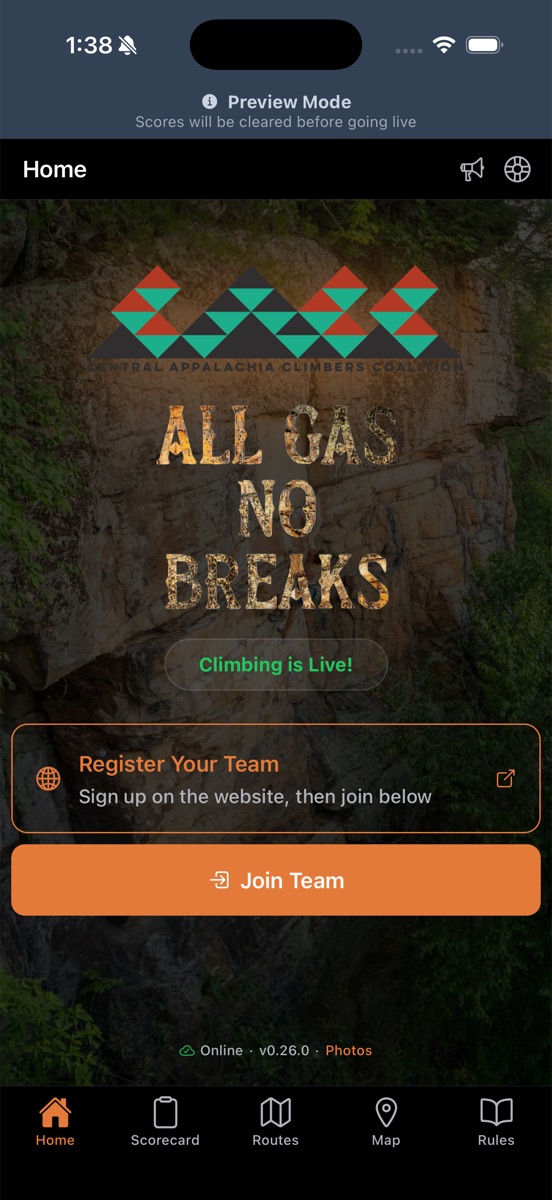
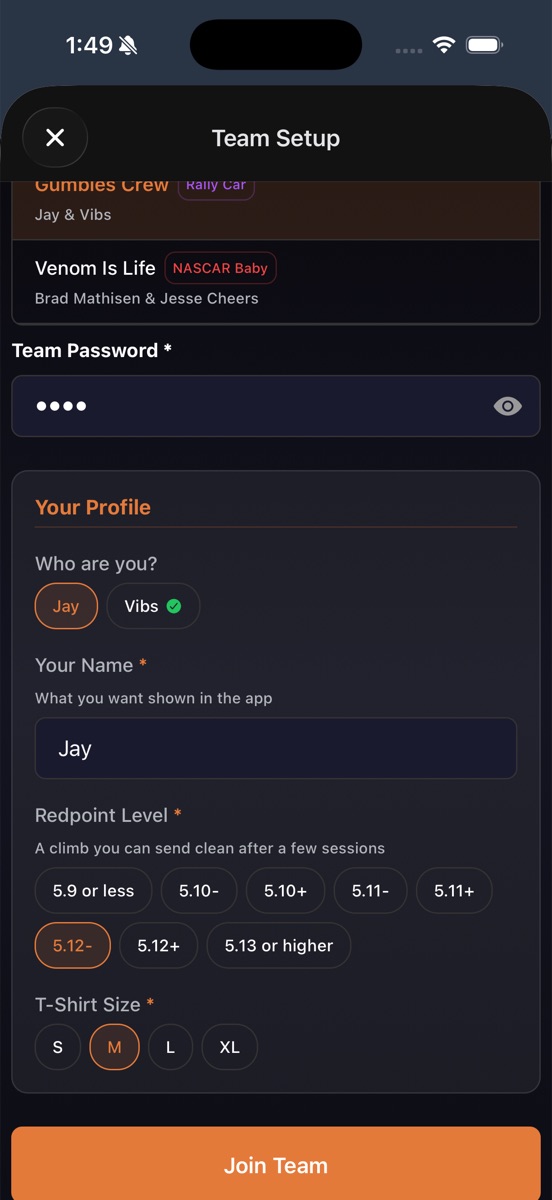
Open the app and tap Join Team. Search for your team by name, enter the team password you set during registration, and fill in or update your profile if needed (name, climbing level, shirt size). Only one team member needs to log climbs on the app, but both can join if they'd like to track from their own device.
Home Tab
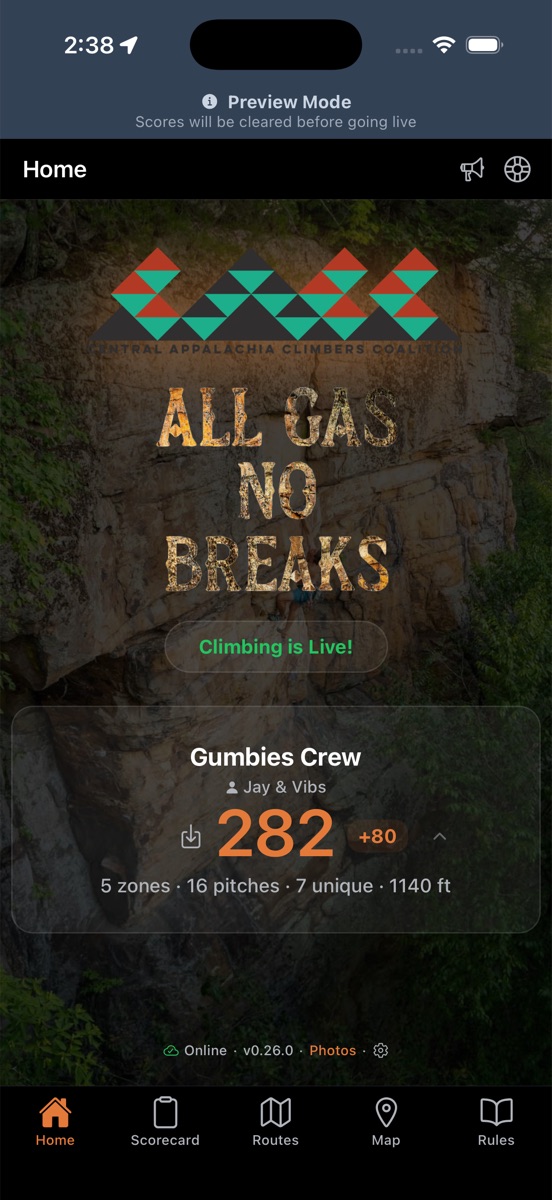
Your starting point. See the event status, countdown, and quick actions.
Event Status & Countdown
The home screen shows the current event status and a live countdown when one is active (e.g., time until climbing starts or ends).
Team Overview
Once you've joined a team, you'll see your team name, members, and category at a glance.
Status Bar
At the bottom you'll find your online/offline status, app version, a photos viewer link, and a gear icon to leave your team or delete your account. If you leave a team, you can always rejoin later using the team password.
Scorecard
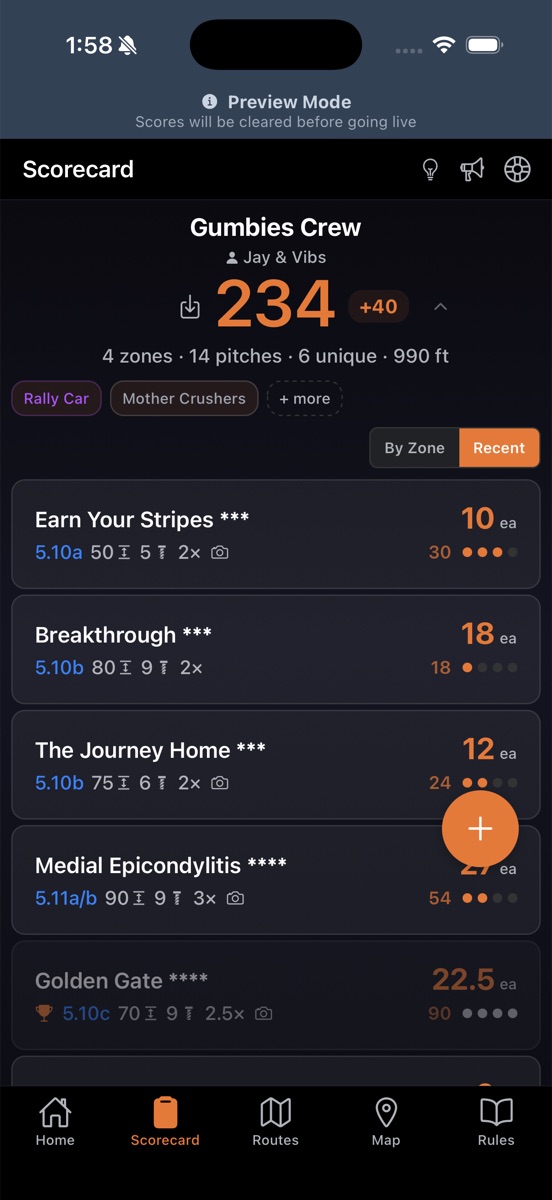
Track your team's score, view bonus breakdowns, and log your climbs.
Your Score
The top section shows your total score, climb count, and bonus points. Tap the bonus tag to see a detailed breakdown of how each bonus is calculated.
Climbs by Zone
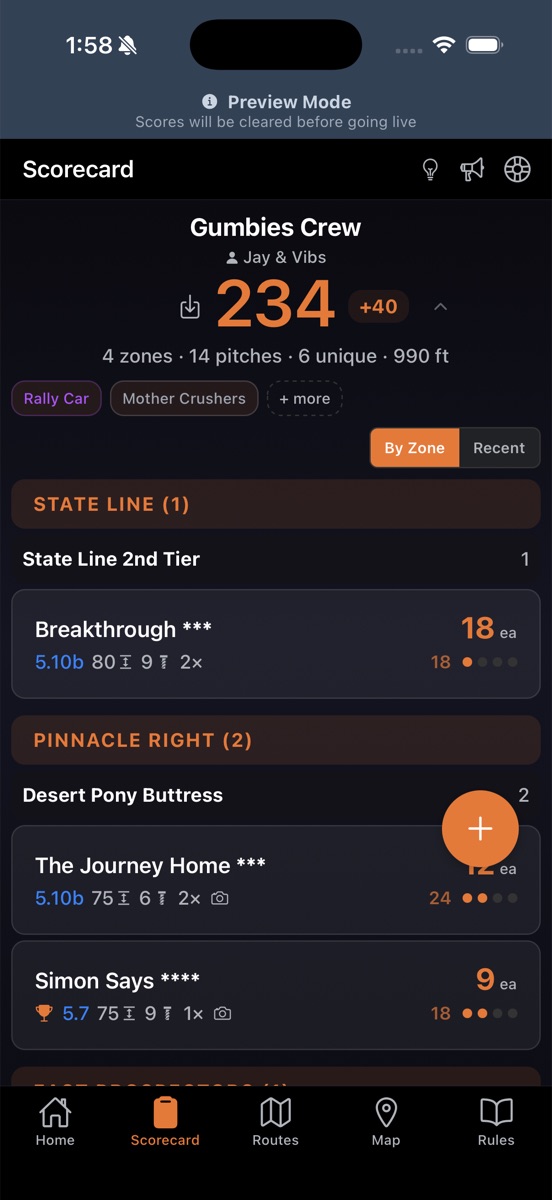
Your logged climbs are organized by climbing zone. Each climb shows the route name, grade, points earned, and how many times you've sent it. Toggle between "By Zone" and "Recent" views.
Categories & Side Hustles
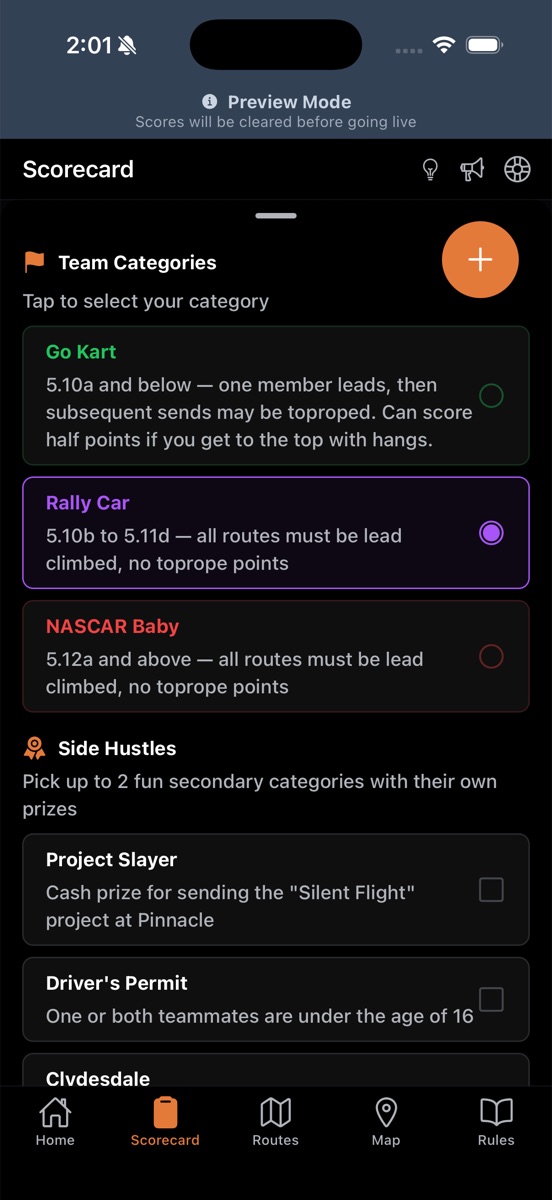
At the top of the scorecard, select your team category and up to 2 side hustles. Lock these in before the event starts — they affect your scoring multipliers and bonus eligibility.
Logging a Climb
Open a route detail and tap the checkboxes to log each send. You can also tap the + button on the scorecard to jump straight to the Routes tab. Points are calculated automatically based on the grade multiplier and bolt count.
Routes
Browse all competition routes with powerful filtering and search.
Browsing & Filtering
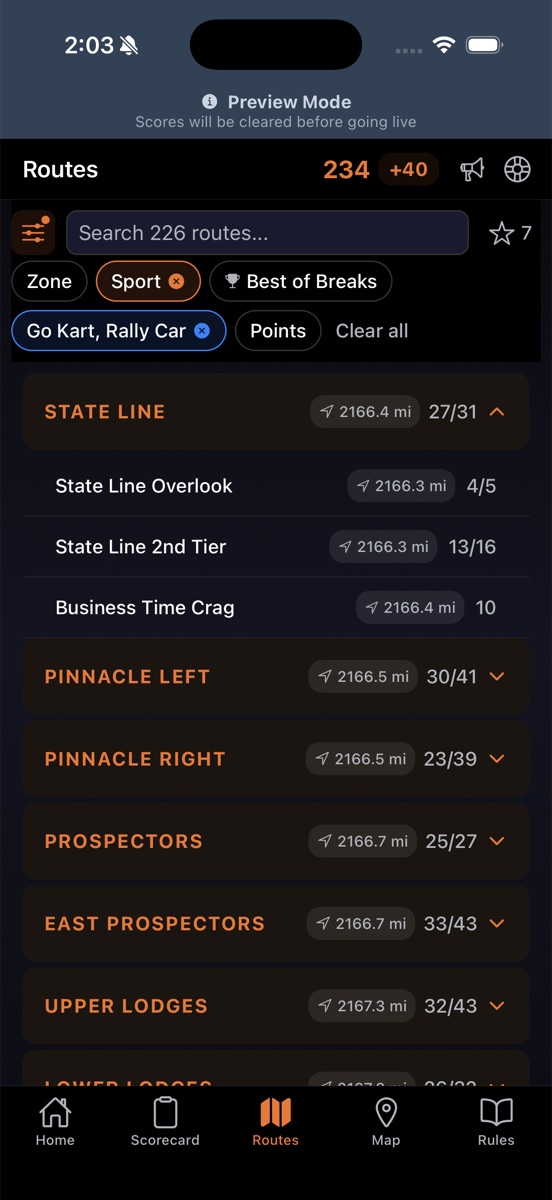
Routes are grouped by zone and crag. Filter by climbing type (sport/trad), grade range, crag, or points. Use the search bar to find routes by name, description, or grade.
Bookmarks
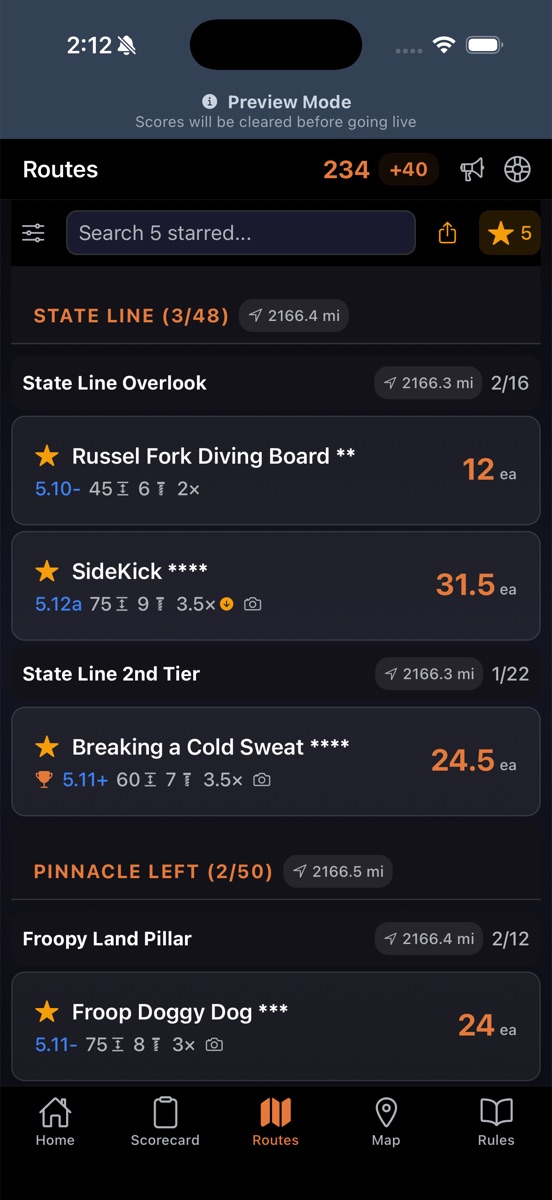
Tap the star on any route to bookmark it for later. View all your bookmarks by tapping the star filter. All other filters (zone, type, grade, points) also apply to the bookmarks view. Bookmarks are stored on your device and are not shared across team members or devices, but you can share them using the sharing feature below.
Sharing Bookmarks
While viewing your bookmarks, tap the share icon to generate a link. Send it to your climbing partner — when they open the link, the app will show a preview of the routes and let them import some or all into their own bookmarks.
Route Details
Everything about a specific route — stats, photos, and climb logging.
Route Info
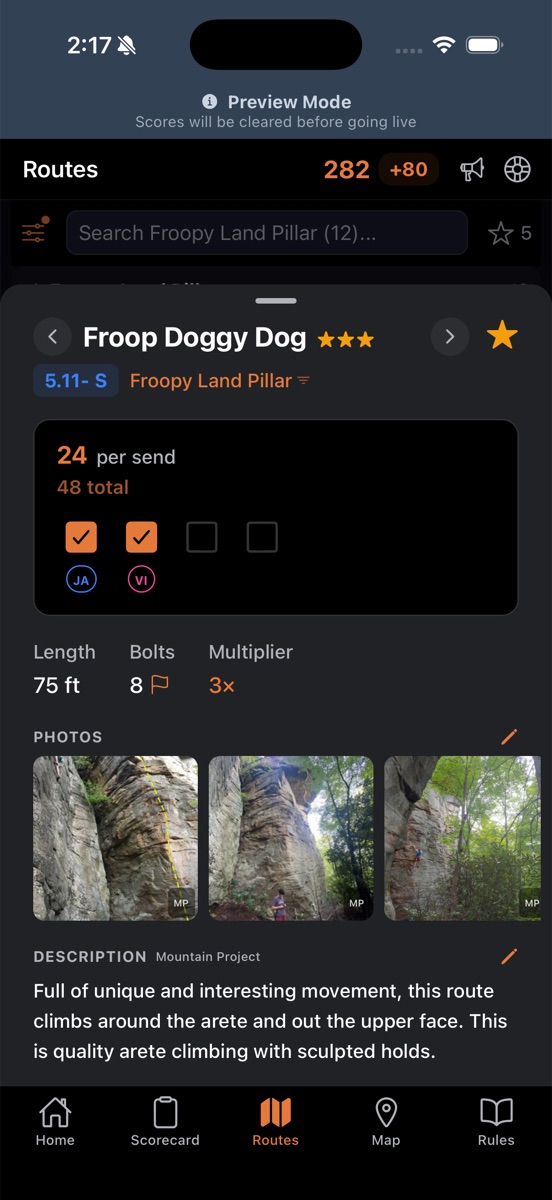
Tap any route to see its details: grade, length, bolt count, multiplier, star rating, description, and location info. Photos are displayed at the top if available.
Logging Sends
Tap a checkbox to mark a send. You can optionally assign who on your team sent the route. The climb tracker shows per-send points and your cumulative score.
Go Kart category: Long-press a checkbox to mark a send with a hang and receive half points.
Contributing Photos & Content
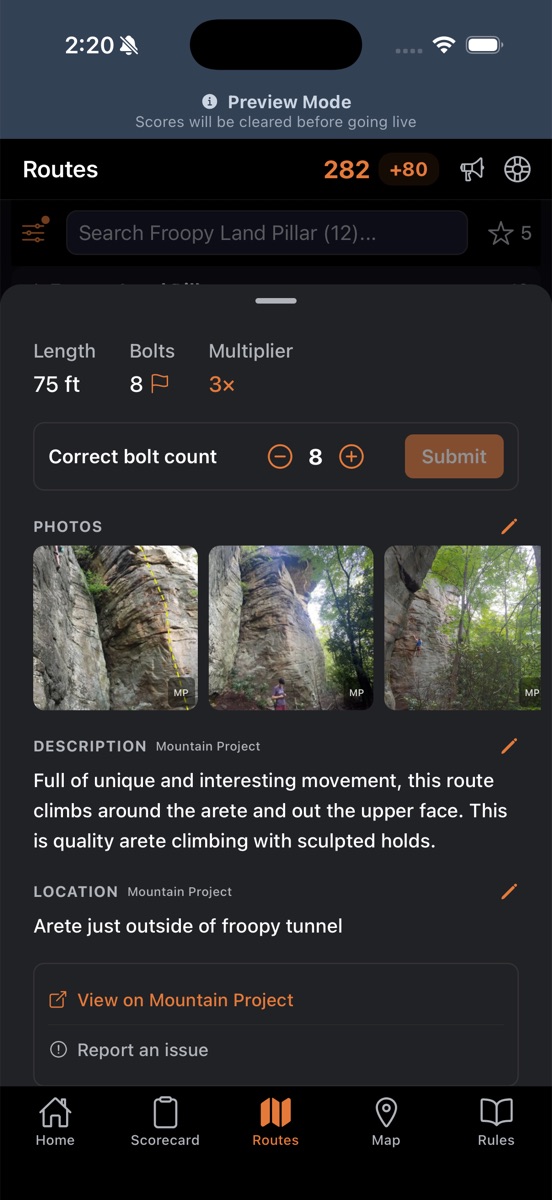
Tap the add icon in the photos section to upload a photo from your gallery or paste a URL. You can also suggest edits to route descriptions and locations. All submissions are reviewed by an admin before going live.
Correcting Bolt Counts
Notice a wrong bolt count? Tap the flag icon next to the bolt count to suggest a correction. Since points are calculated from bolt count, keeping these accurate helps everyone.
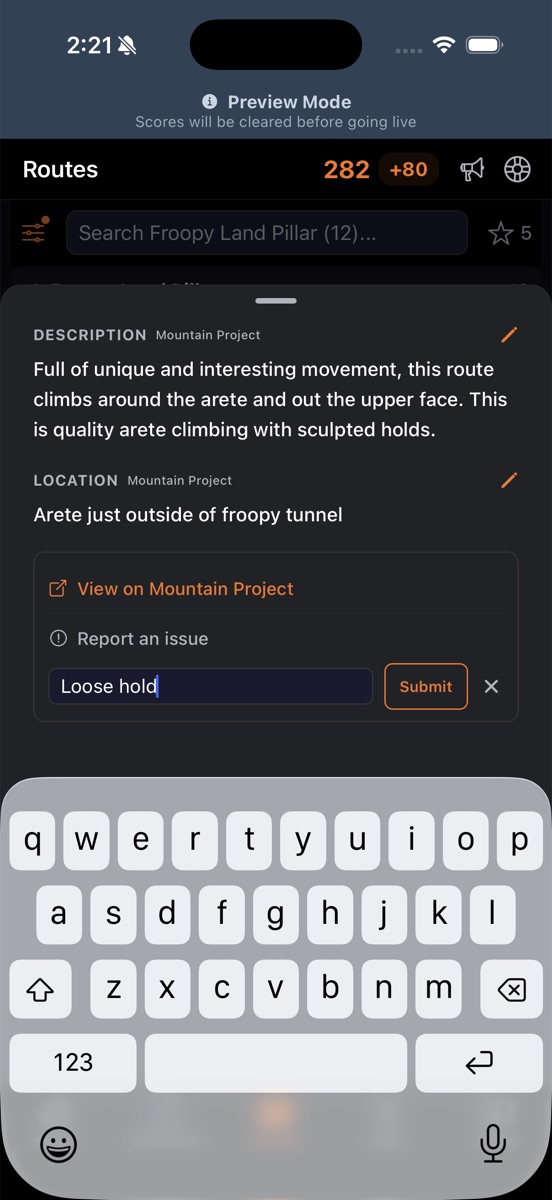
Reporting Route Issues
Spot wet rock, loose holds, or other hazards? Tap "Report an Issue" at the bottom of the route detail to alert the admin. They'll review your report and can close the route if needed.
Map
Navigate the climbing areas with an interactive map and GPS waypoints.
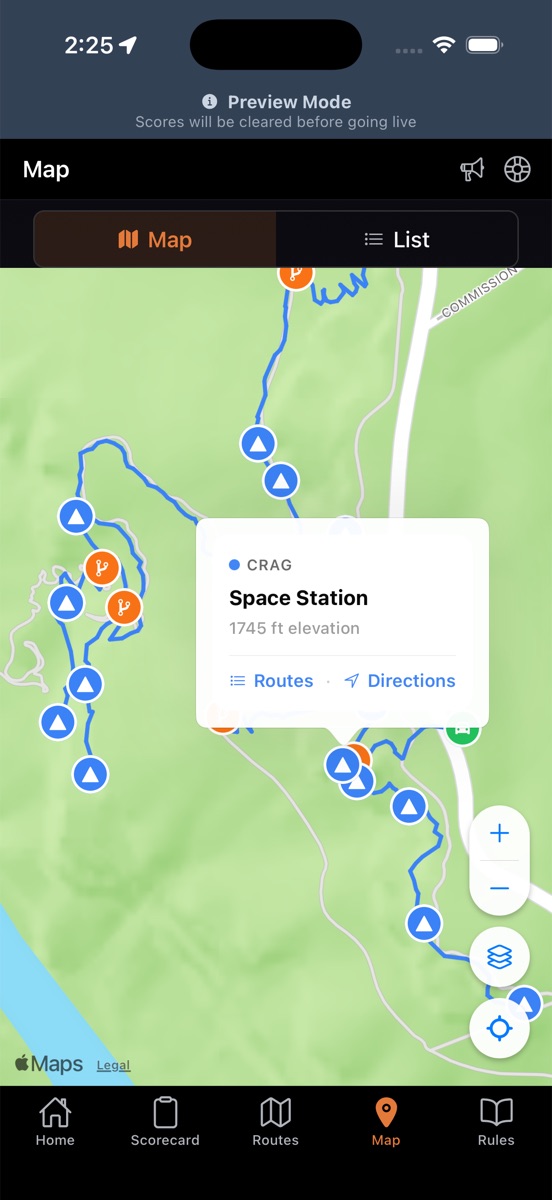
Map View
The map shows all crags, parking areas, and trail junctions as color-coded markers. Trail paths are drawn between waypoints. Switch between Terrain, Topo, Outdoors, and Satellite layers.
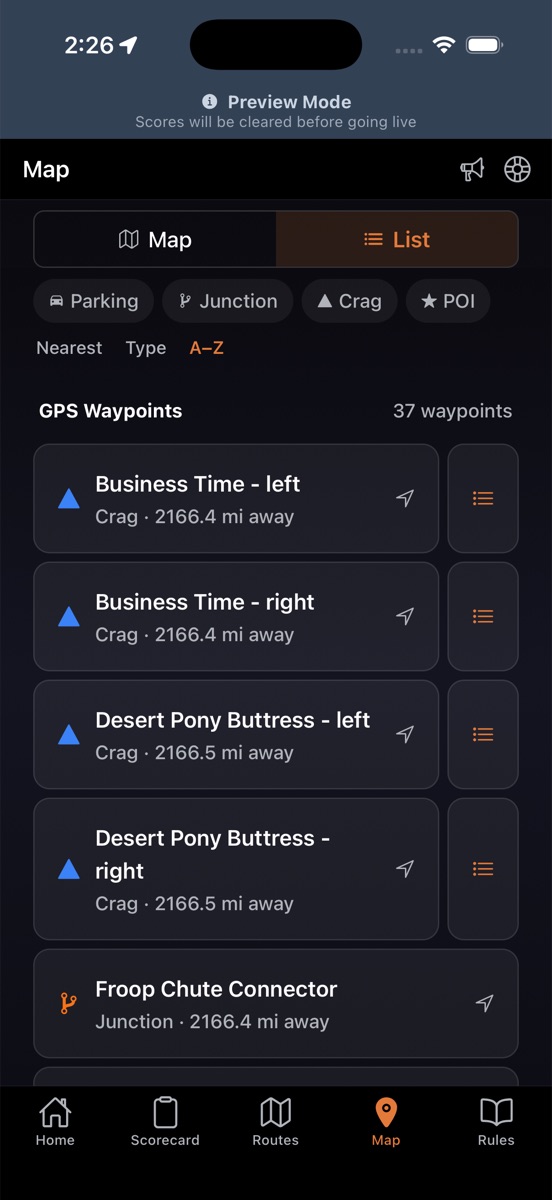
List View
Toggle to the list view to see all waypoints sorted by distance, type, or name. Filter by tag (Parking, Crag, Junction, POI). Tap a waypoint to jump to it on the map, or tap the Routes button to navigate to the Routes tab filtered by that crag.
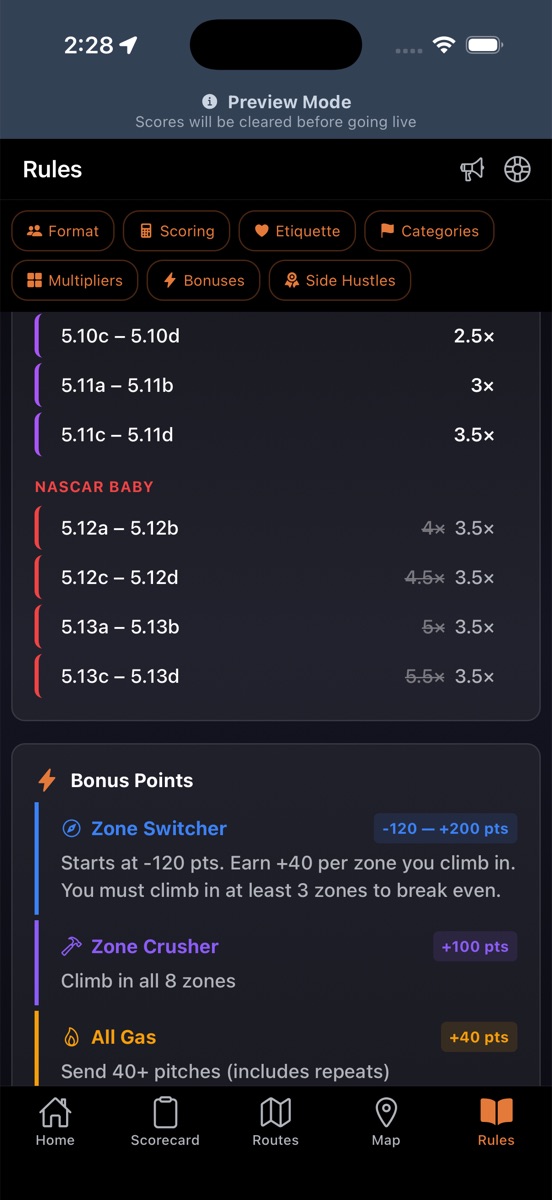
Rules
Competition rules, scoring system, and bonus details.
Support
Get help during the event.
Support Menu
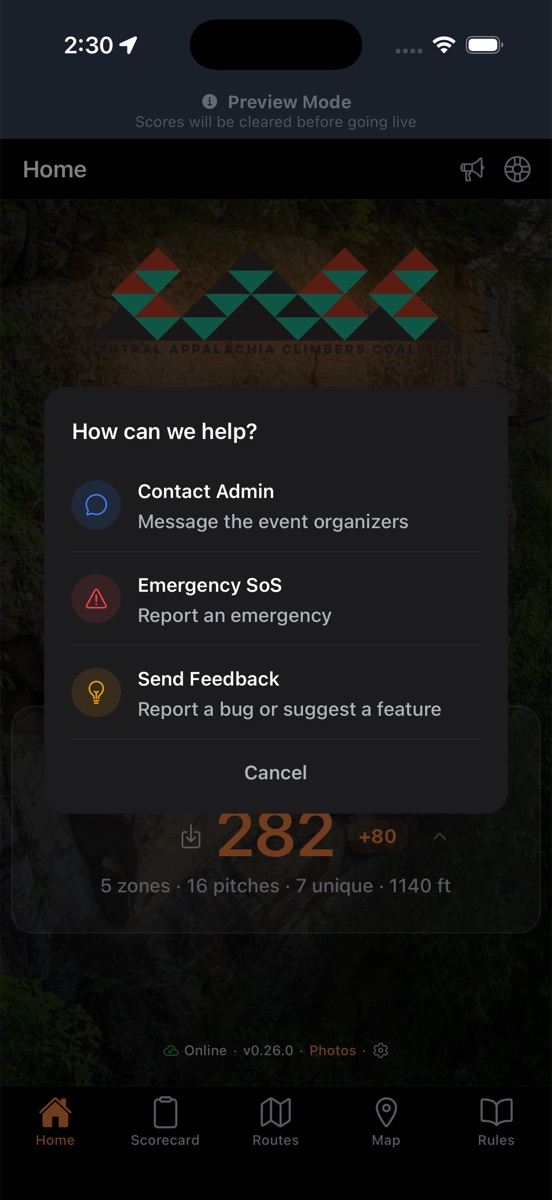
Tap the life buoy icon in the top-right corner of any tab to access support options:
- Contact Admin: Send a message to the event organizers and see their replies
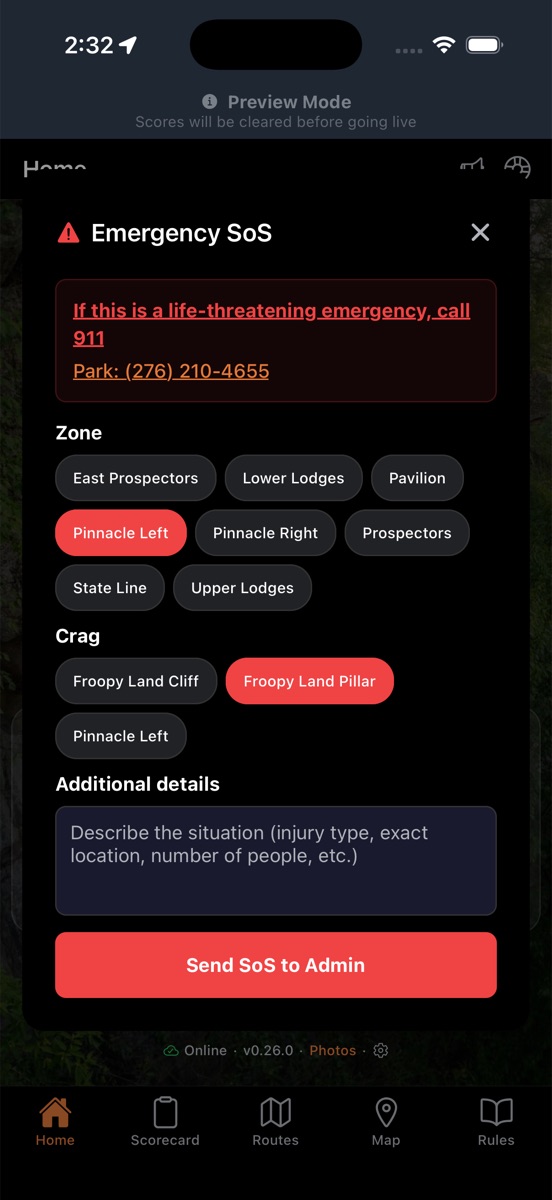
- Emergency SoS: Report an emergency with your location to the admin team
- Send Feedback: Report a bug or suggest a feature, with optional screenshot